Showing posts with label Moyea SWF to Video Converter Std. Show all posts

Tuesday, May 25, 2010

Download Flash SWF and Convert to AVI, MOV, Animated GIF


This blog is originally from http://www.swfkits.com/swf-converter-blog/download-flash-swf-and-convert-to-avi-mov-animated-gif/


A few days ago when I was looking through Yahoo Answer, accidently I saw some questions about the conversion between flash SWF and other video/picture formats. The frequently-asked questions are: how to convert SWF to AVI? How to convert SWF to MOV? And how to convert SWF to animated GIF?


Of course there are some very nice answers there, however, when I see somebody saying "It's just impossible to convert SWF to animated GIF because SWF is flash, while GIF is picture format, so it's not possible…(Sorry, I forgot how exactly the answer said)", it was a big shock for me! What I want to say is: it is possible to convert SWF to animated GIF, and it is very easy as long as you find the right program!


Also, they are a lot of questions are asked about WHERE and HOW can I download flashes, well, my answer is ANYWHERE you want and it is very easy too, but here you go again, you have to find the right program!


Next, I'll extract some pictures to illustrate how I solve the above questions:


Question 1: Where and how can I download flash SWFs?


Usually, you should focus on some online game websites cause most of the little games there are made in SWF format. Also, most advertisements and banners on the websites are made in SWF format too. If you are still not sure where to find them, just type the URL of the website that you think there may be flashes, and the program will automatically detect and download(if any).


Look at Figure 1, i just rendomly type youtube.com and actually I'm not sure whether it has flash there or not, click "Go" to perform search, if there is, the SWF URL will be listed, if there is not, just change another URL to try.


download flash swf

Figure 1


Question 2: How to convert SWF to AVI?


I have to say this is one of the basic SWF to video converions and is extremely useful for those who want to play SWF files on PC players and with excellent picture and sound quality. Please see Figure 2.


convert swf to avi

Figure 2


PS: if you are a professional video editor, you can choose "Video with alpha" option to convert SWF to AVI with alpha channel.


Question 3: How to convert SWF to MOV?


Apple! Apple! Apple! SWF to MOV conversion is made for mac users to play SWF file in Apple QuickTime Player. Please see Figure 3 for details.


convert swf to mov

Figure 3


Question 4: How to convert SWF to animated GIF?


This is a challenge because somebody already said it is just impossible, I want to say: just impossible for some programs! Here comes the solution(see Figure 4).


convert swf to animated gif

Figure 4


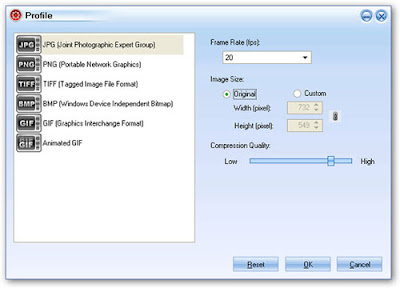
Not only that, you can customize the frame rate, image size and compression quality during the SWF to animated GIF conversion. Test the finished GIF and the excellent quality will definitely WOW you!


This blog is just the tip of the iceberg, keep exploring and you will find more! Enjoy the Flash World!


Monday, May 17, 2010

The Contradiction between Adobe and Apple is Getting Fierce


This blog is originally from http://www.swfkits.com/swf-converter-blog/the-contradiction-between-adobe-and-apple-is-getting-fierce/


According to foreign media reports, Adobe company delivered an advertisement and open letter on May, 13th, strongly accused Apple for strangling the competition. Apple previously had made it very clear that the Adobe software applications were totally banned on iPad and iPhone.


Adobe said in the advertisement: "We like Apple. What we don't like is the person who grabs your freedom to choose. You definitely have the freedom to choose what are you going to create, how to create, and what to experience on the internet." Adobe also bought a full-page on Washington Post today, gave all the details about this dispute between Adobe and Apple. At the end of the open letter were the signatures of co-founder Geschke Chuck and John Warnock.


In this letter, Adobe declared: "the essence of the problem lies in: who is the real controllor of Internet? We think the answer is the Internet users, rather than any of the powerful company."


It is reported recently that Apple is developing the Flash-alternative project Gianduia, which was revealed in WWDC(Worldwide Developers Conference) last year.. Apple has said it will support HTML5, JavaScript and CSS, but not Flash.


The insiders think the Adobe open letter is a strong evidence that the divergence between Adobe and Apple is getting worse. Two weeks ago, the CEO of Apple just issued a 29-paragraph-long article to accuse Adobe Flash for "major technology defect". It is said that Adobe has officially sued to America Anti-Monopoly Government Department and it may investigate this case accordingly. This means the contradiction between the two is intensified thoroughly.


Some useful links for your reference if you want to convert flash SWF to other popular video/audio/picture formats.


http://www.swfkits.com/swf_to_video/ http://www.swfkits.com/swf_to_avi/


Thursday, December 24, 2009

Firefox Plugin Detection Mechanism Leads to 10 Million Flash Downloading


This blog is originally from http://www.swfkits.com/swf-converter-blog/firefox-plugin-detection-mechanism-leads-to-10-million-flash-downloading/


According to the foreign media reports, Firefox developer Mozilla said recently that the newly-released Firefox upgraded version with flash auto-detect mechanism has led to 10 million latest flash downloading from Adobe website in a week.


Mozilla released Firefox latest upgraded version 3.5.3 and 3.0.14 last week which perfectly fixed three critical security flaws in the previous version. In addition, in order to prevent attackers using Firefox plugin flaw to attack its users, new versions will initially detect whether the flash player that Firefox using is the latest or not.


Mitchell Baker, chairman of Mozilla, said that in the last week, about 1/3 new version users have downloaded the latest flash player from Adobe after seeing the reminding message. "User response rate is very high, usually the response rate is only 5% when they see software upgrade information.", Mitchell said.


Mozilla security team personnel Jonathan Nightingale explains that the fact a large number of Firefox users would like to update flash player indicates the importance of network security issues. He said last week the reason why new Firefox has to detect whether the flash player it is using the latest version or not is: first, flash player is very popular; second, 80% Firefox users are still using the old version flash player according to a corresponding survey.


Adobe company also confirmed that the visitors of flash player upgrading webpage in the past week had a rapid growth. Adobe products security and privacy department director Brad Arkin appreciated the latest detecting mechanism very much by saying "For Adobe, it's definitely a good thing for massive users to have the upgraded flash, it assures their security and we are very happy to see Mozilla sending the flash upgrading message to its users."


P.S. You may be also interested in another blog about How to Delet Flash SWF Cache under Firefox.


Wednesday, November 11, 2009

Easy Steps to Make Impressive Flash Charts Online


This blog is originally from http://www.swfkits.com/swf-converter-blog/easy-steps-to-make-impressive-flash-charts-online/


RichchartLive is a free online tool that can create enjoyable and impressive flash charts with attractive visuals and interactivities. It can generate more personalized charts with dynamic flash animation effects. Users can easily choose the chart style and set various parameters. The finished chart can be exported as flash, which can be published to PPT, websites and blogs for immediate sharing.


Easy Steps to Make Creative Flash Charts Online:


1. Select a template from abundant options and immediate preview is available;


select template for flash chart


2. According to the template selected, input datas;


input data for flash chart


3. Select series style and colors;


select series style for flash chart


4. Select axes type and style;


select axes type for flash chart


5. Select animation and layout;


select animation and layout for flash chart


6. Save as flash file or publish to multi-destinations like PPT, website or blog, etc.


publish flash chart


The finished flash chart is really fantastic and the effect is awesome! Highly recommended!


Saturday, October 10, 2009

Convert Files into Web-Ready Flash Documents or PDFs


This blog is originally from http://www.swfkits.com/swf-converter-blog/convert-files-into-web-ready-flash-documents-or-pdfs/


Let's say if you want to publish Microsoft Word documents on the Internet for sharing with other people, usually we will save it as web page format .mht or .mhtml, however, the layout will be changed if we use this way. Is there any better solution to convert Word to web-ready documents like flash SWF without changing its layout? Definitely yes, FlashPaper is the key!


FlashPaper allows anyone to convert printable files(here we use Microsoft Word for example) into Flash documents or Adobe PDF files with one click. Instantly generate Flash documents that can be accessed by over half a billion web users. Or transform files into secure, compact PDFs for e-mailing, archiving, and printing. FlashPaper is an affordable solution to create web-ready documents easily that can be shared on any website.


The brief tutorial below demonstrates exactly how to convert Word to Flash SWF with FlashPaper in seconds:


Step 1: Simply download and install FlashPaper program. The free trial versiom is available at Adobe official website.


Step 2: Open one Word document that you want to convert to flash, click "FlashPaper" menu on Toolbar.


click "FlashPaper" on toolbar


Step 3: Click "Convert to Macromedia Flash(.swf)", and then save it in the destination folder.


choose "convert to macromedia flash(.swf)"


Step 4: Open the SWF file you just saved in the destination folder, you will be amazed how excellent job the FlashPaper has done: layout is exactly the same and everything is the same. By the way, FlashPaper can also convert Word to PDF. Try it!


convert Word to PDF


Kind notice:


Want to be more creative? No problem, try to convert those generated SWF files to other popular video formats like AVI, MP4, VOB. MPG, RMVB, etc with Moyea SWF to Video Converter Std/Pro, so that you can watch them via various portable devices, iPod, iPhone for example. Have fun!


convert SWF to Video formats


Tuesday, June 16, 2009

Comparison of Moyea SWF to Video Std/Pro & Moyea SWF to MPEG


As one of our featured products, Moyea SWF to Video series deserves more attention.

Previously i have posted their tutorials respectively and today we will focus on the comparison between the two and hope the following chart can help.


Moyea SWF to Video Converter Pro is the updated version of Moyea SWF to Video Converter Std, except all the basic functions that std has, this pro version also has some extra functions like it can convert SWF to Video in any popular formats with alpha; it can crop video to the exact size that the users want and it can even add an image and text watermark on the finished video. This Moyea SWF to Video Converter Pro is definitely a very useful software for those high-level video fans who are capable to edit videos for a better effect.

Meanwhile, Moyea SWF to MPEG Converter focuses on MPEG for DVD/VCD/ SVCD more than the other two. It’s good enough too and with a more reasonable price if you only want to convert SWF to MPEG files.

No matter what your need is and no matter which product you choose, Moyea will always guarantee you the best quality and the best service.

Sunday, June 14, 2009

SWF Family: Moyea SWF to Video Converter Std


Another new day in another week! How are you guys doing? Hope you all had a nice weekend and all are fully charged now for the new week’s work.

As a video fan, I’ll always try to find some topics and share with you.

Previously I have introduced how to download SWF files with Moyea Flash Download which is a free attached downloader in Moyea SWF to Video Converter Pro. And then how to convert SWF files to other video, audio and image formats with the above-mentioned Moyea SWF to Video Converter Pro.

In Moyea SWF to Video Converter family, there is also another counterpart called Moyea SWF to Video Converter Std and that’s our topic today.

In general, Moyea SWF to Video Converter Std has all the functions that Pro does: it can convert SWF files to many other video formats like AVI, MPEG, MOV, FLV, 3GP movie (3GPP/3GPP2), MP4 (iPod video, iPhone video and PSP movie), WMV (Zune movie and Pocket PC movie), audio formats like MP3 and image formats like Animated GIF, JPEG, GIF, PNG, TIFF, BMP, etc. However, you have to be aware that “to convert SWF to Video with alpha” and “to Crop Video” is NOT available in Moyea SWF to Video Converter Std and that’s the only difference between the two.

Ok, then let’s have a look at the tutorial below on how to convert SWF to Video with Moyea SWF to Video Converter Std.

Step 1: Simply click here to download Moyea SWF to Video Converter Std, click "Browse" and then choose “From Folder” from the drop-down menu to input SWF files.
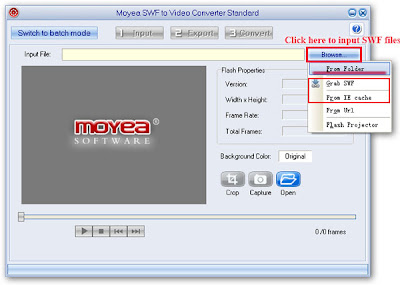


Note 1: Please refer to my previous blog “How to download SWF files?” to see how to input SWF files by “Grab SWF” and “From IE cache”.

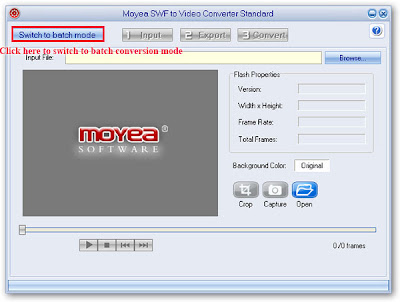
Note 2: The first time you open Moyea SWF to Video Converter Std, the default conversion mode is "Single Mode", if you have many files to convert, it is recommended to choose "Switch to batch mode" on the top left.

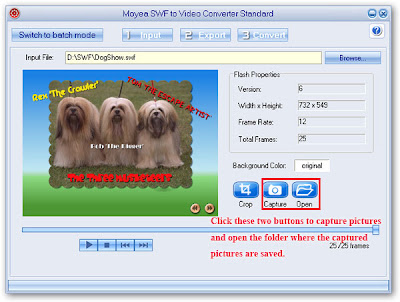
Step 2: After inputting, you will find the properties of input source file on the right panel.

a. Click "Original" to choose a background color.
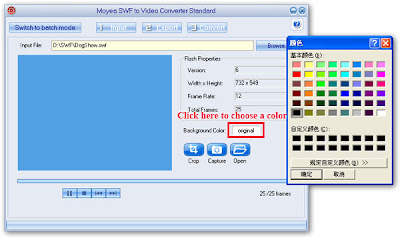


b. Click "Capture" to capture your favorite pictures while playing video and then click "Open" to open the folder where the captured pictures are saved automatically.


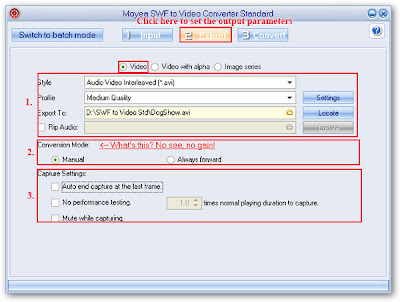
Step 3: Click "Export" tab to set the parameters for outputting.

a. Choose to generate video.

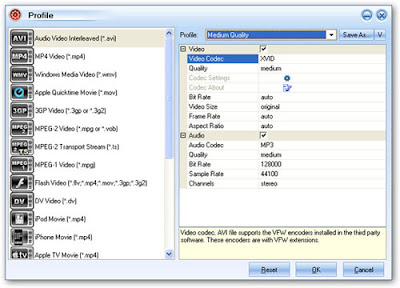
1. Select a style, profile and destination folder. Click" Settings" for advanced settings and check the box before "Rip Audio" to save the background music in another separate folder.

2. Select a Conversion Mode: There are two conversion modes: Manual or Always forward. Select "Manual", you can interact in the conversion process by setting the capture starting and ending points. Click" What's this, No see, no gain!", a window will pop up and give you more information about manual conversion mode. Select "Always forward", you can't interact in the conversion process, and the program always captures forward the SWF file, it is helpful for Flash Game which interacts with people.

3. Capture Settings: Check " Auto end capture at the last frame", the program will stop capturing at the last frame automatically, this is activated automatically when you have chosen "Always forward" conversion mode.

Check "No performance testing" to set the speed, or just keep the default 1.0. If you change the default value, "Mute while capturing" will be activated automatically.

Check "Mute while capturing", then it will be silent when capturing.


Advanced settings for video.


b. Choose to generate image series.
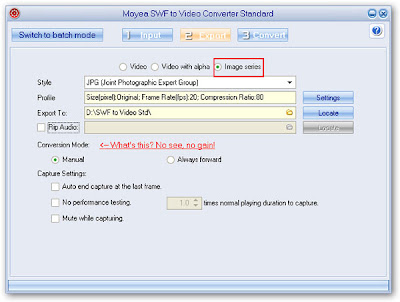


Advanced settings for image series.


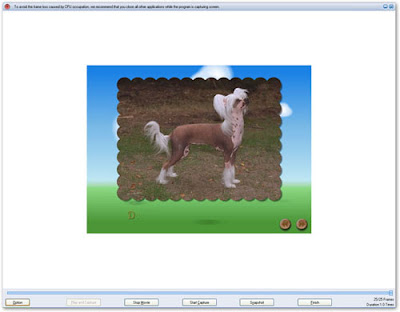
Step 4: Click "Convert" tab then there will be an interface for your conversion where you can see several buttons including "Option", "Play and Capture", "Play Movie", "Start Capture", "Snapshot" and "Finish".


Hit on "Option" button, there are two choices: Performance testing and Stopped frame.

Click "Performance testing", interface below for you to set the working folder will pop up. Set the working folder or just keep the default. To guarantee an accurate result, you are suggested to interact with the flash when it asks you to.
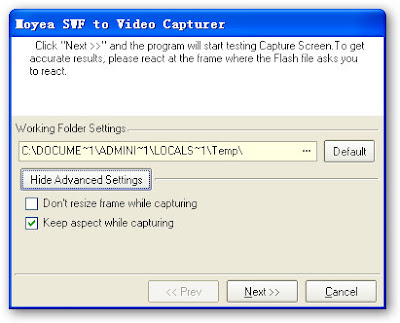


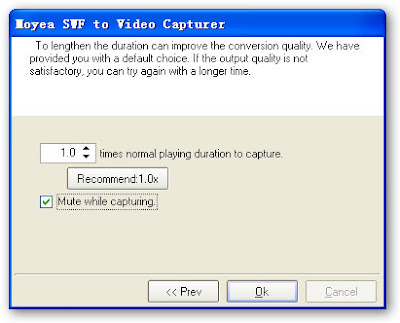
Click" Next>>", a bar showing the progress of performance testing appears. After the performance testing is finished, the interface below for you to set the screen capturing speed pops up. Set the speed, or just keep the default. Check the "Mute while capture" box for silent capture. Click "OK"to finish the testing.


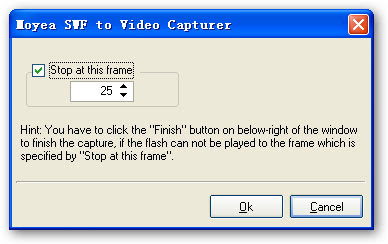
Click "Stopped frame", the interface below will pop up. Check "Stop at this frame" and set the frame, then the program will stop capturing at this frame.


Play and Capture: click this button, the SWF file will be played. Meanwhile, the program captures the files.

Play Movie: Click this button, the SWF file will be played while not being captured.

Start Capture: This button is available when there is SWF file being played. If you want to convert part of the SWF file, you can click this button when it comes to the specified part.

Snapshot: Click this button, you can capture the specific picture.

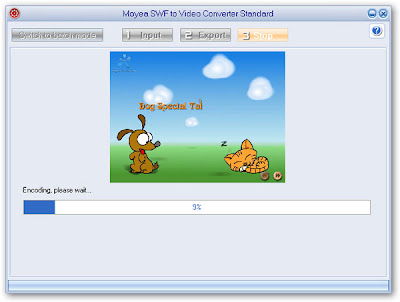
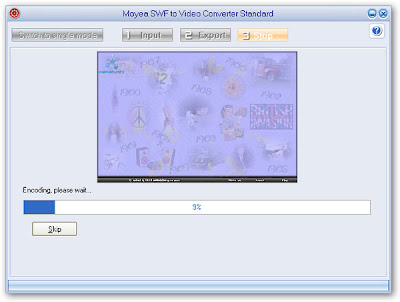
Finish: Click this button to stop capturing. After finishing capture, the program starts encoding process. Confirm the "Conversion Success" and the output folder will pop up automatically. Now it's the time to enjoy.


So far, the above instructions are all about single mode conversion, and this converter can also convert files in batch mode way which will definitely saves a lot of time and energy for you. Below are the illustrations on how to batch-convert files.

Step 1: Open Moyea SWF to Video Converter Std and then click "Switch to batch mode" on the top left to switch to batch conversion mode.


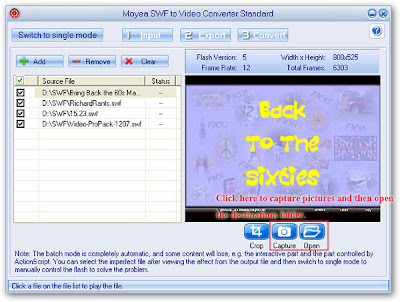
Step 2: Click "Add" to input SWF files and double click each file's name to have a preview on the right screen. Click "Check All" to select all the files that to be converted.


Note 1: As batch mode is default with the automatic conversion mode, some of the interactive or AScript controlled flashes with few frames may not be processed perfectly. It is recommended to shift this kind of files to "Single Mode" to convert under "Manual Mode" for a better result.

Note 2: In batch mode conversion, the water mark set will be added to all SWF files automatically.

Step 3: The same as Single Mode, click "Capture" and "Open" to capture pictures and then open the destination folder where the pictures are saved.


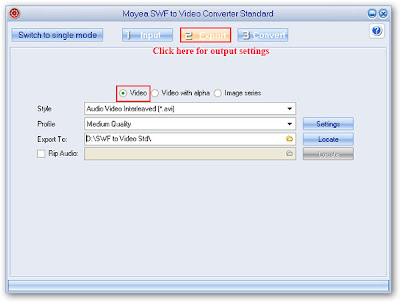
Step 4. Click "Export" for output settings.

All are the same as the "Single Mode", except that you don't have to select conversion mode as well as capture settings, because batch mode is default with "always forward conversion", performance testing is played and the capture is silent by default, moreover, the program stops capturing at the end frame by default too.
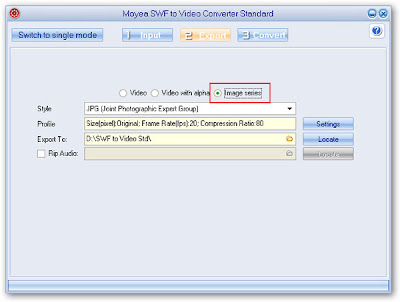


Step 5. Click “Convert”, then the program will start to test the screen capturing speed, and encode one by one. Through this process, you can only set the end frame of each file by clicking the "Finish" button in the bottom toolbar.

Confirm the "Conversion completed" and now it's time to enjoy.


No matter you choose Pro or Std, we will always provide you with the best quality and the unforgettable experience.

Moyea, always gives you exactly what you want!